Dupa plasarea solicitării de comandă, in sectiunea Istoric puteti vedea cate solicitări de comandă mai avem de procesat inaintea dumneavoastra
Program de lucru: Luni - Vineri 8:30 - 17:30, pauza 12:30 - 13:30.
Se efectueaza lucrari de mentenanta la site si pot aparea erori. In cazul in care intampinati erori va rugam sa reincercati mai tarziu.
Ridicarea personala este disponibila pentru comenzile achitate in avans. Se pot ridica dupa ce sunt pregatite.

No products
 View larger

7’’ 1024x600 JRP7007 Display
0104110000086983
New product
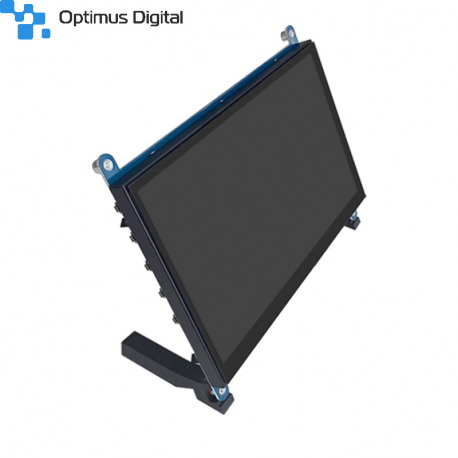
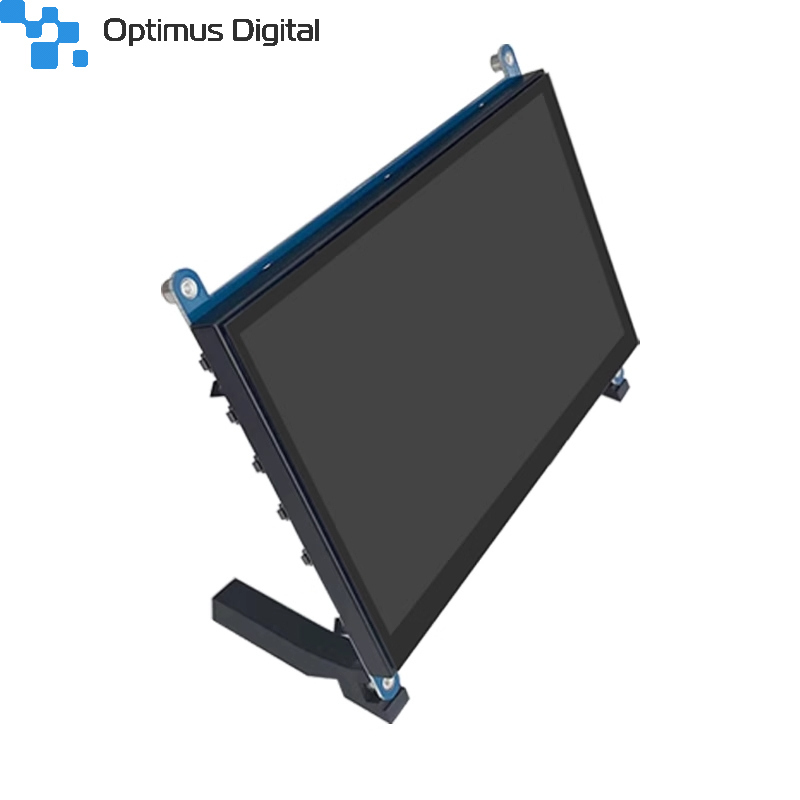
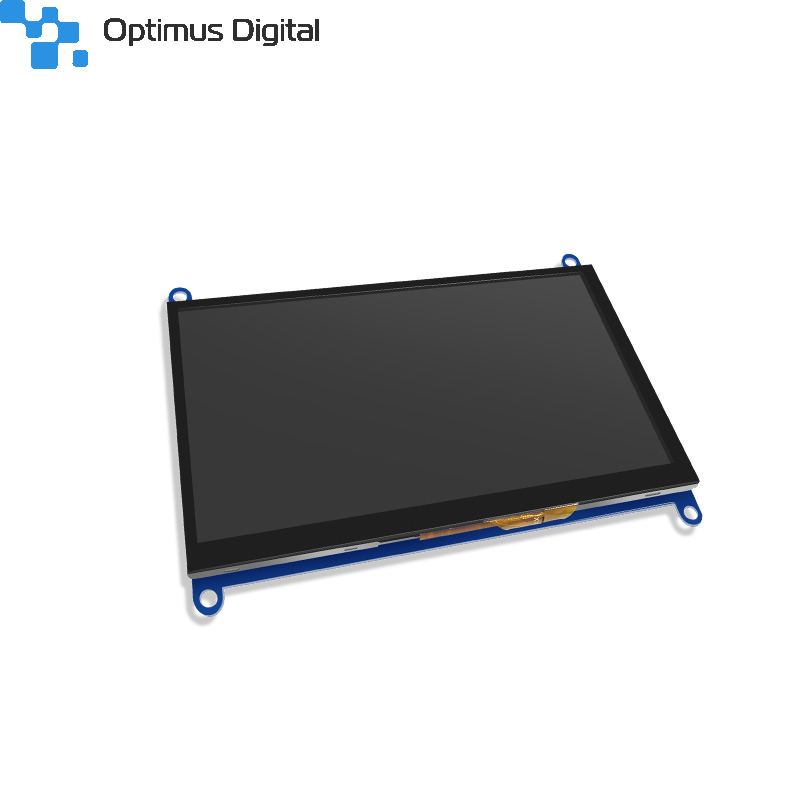
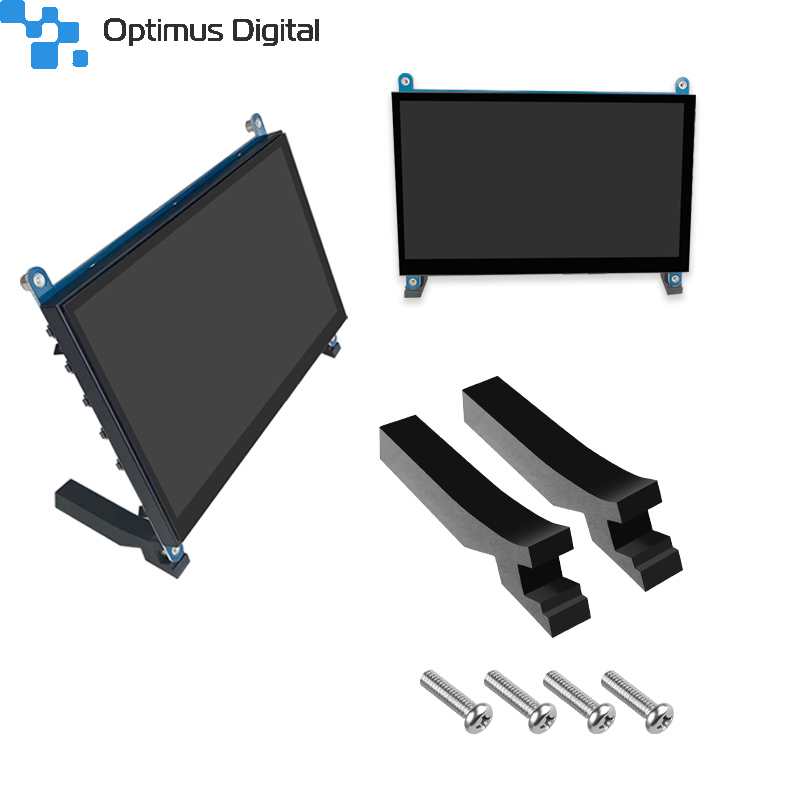
7’’ 1024x600 JRP7007 Display
See description for more details about the product.
Add to cart now!
This product is no longer in stock
- Write a review
- Remove this product from my favorite's list.
- Add this product to my list of favorites.
More info
Description
- Model: JRP7007
- Display Type: 7.0" TFT Normally Black
- Resolution: 1024*RGB*600
- Color: 16.7M
- View Angle: Full View
- Driver IC: ST5091+ST5625
- Interface Types: HD
- Connection Mode: HD
- Power Consumption: 860mA@5.0V
- Brightness: 500cd/m2
Specification
- Outline Dimension: 166.5*124.12*18.4mm
- Active Area Dimension: 154.08*85.92mm
- Resolution Dimension: 1024*3RGB*600
- Pixel Pitch Dimension: 0.0219*0.219mm
- Structure Type: COG+FPC+BL (note)
Note: COG: Chip On Glass (LCD+IC); BL: Backlight; TP: Touch Panel
7" Display - JRP7007
| Product Description |
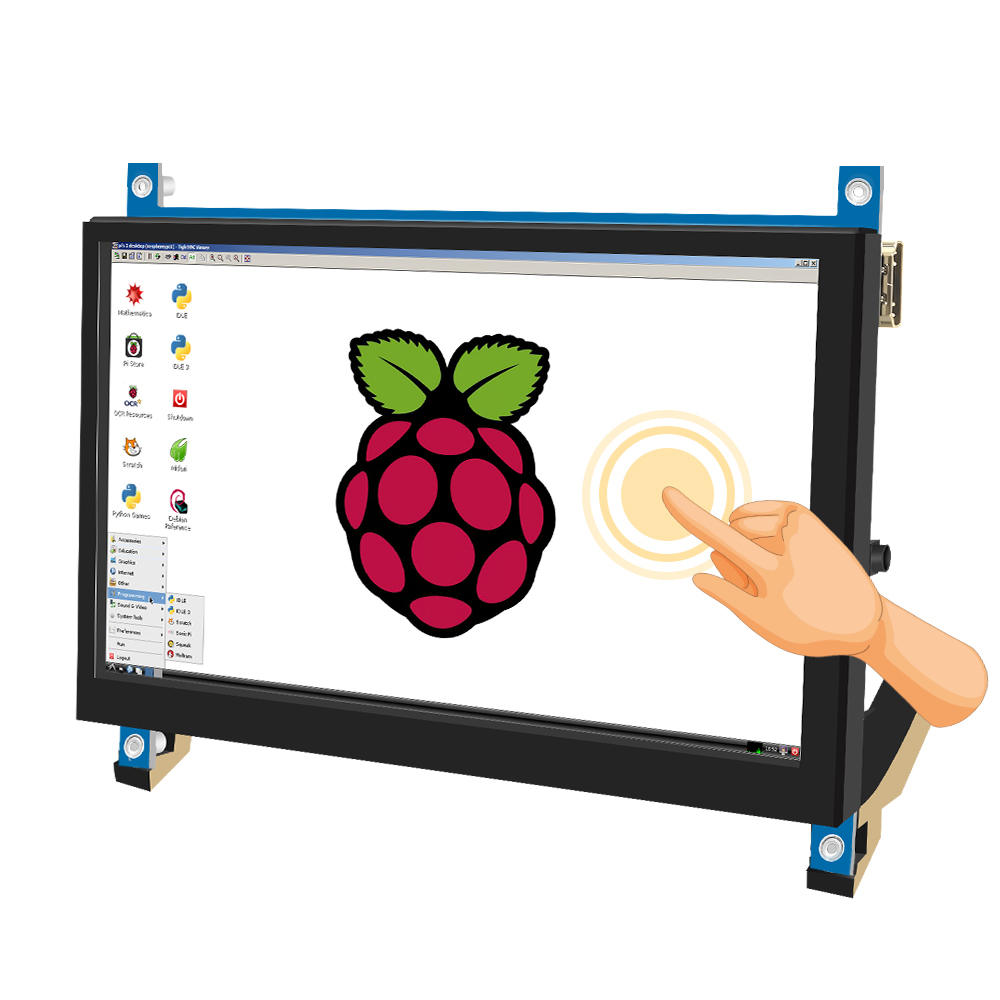
- 7inch standard display, 1024 × 600 Hardware resolution, Up to 1920x1080 Software configuration resolution.
- Capacitive touch screen, maximum support 5 point touch.
- Support backlight control alone, the backlight can be turned off to save power.
- Support Raspberry Pi, BB Black, Banana Pi and other mainstream mini PC.
- Can be used as general-purpose-use HD monitor, for example: connect with a computer HD as the sub-display.
- Used as a raspberry pi display that supports Raspbian, Ubuntu, Kali-Linux, Kodi, win10 IOT, single-touch, free drive.
- Work as a PC monitor, support win7, win8, win10 system 5 point touch (XP and older version system: single-point touch), free drive.
- CE, RoHS certification.
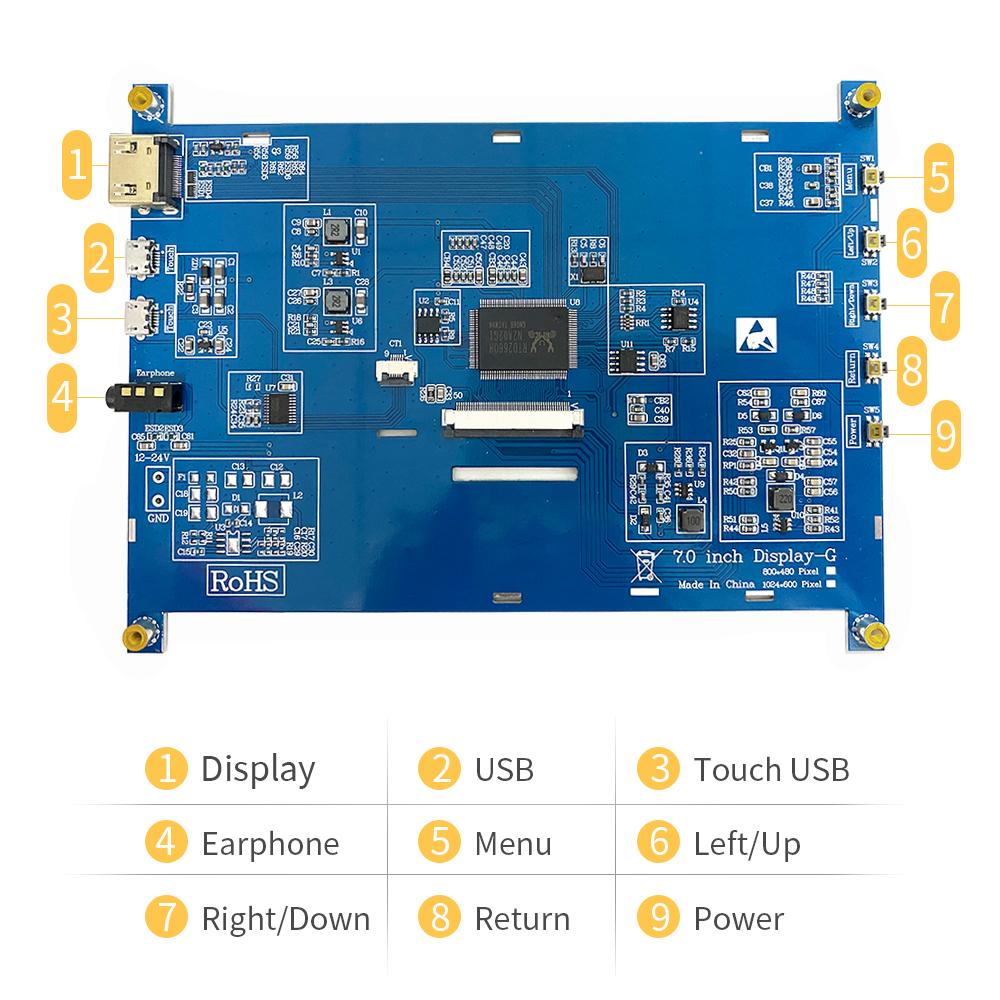
| Hardware Description |
| How to use with Raspbian/Ubuntu Mate/Win10 IoT Core System |
Step 1 - Install Raspbian official image
1. Download the latest image from the official download.
2. Install the system according to the official tutorial steps.
Step 2 - Modify the "config.txt"
After the programming of Step 1 was completed, open the config.txt file of Micro SD Card root directory and add the following code at the end of the file, save and eject the Micro SD Card safely:
| max_usb_current=1 hdmi_force_hotplug=1 config_hdmi_boost=10 hdmi_group=2 hdmi_mode=87 hdmi_cvt 1024 600 60 6 0 0 0 |
Step 3 - Insert the Micro SD Card to Raspberry Pi, connect the Raspberry Pi and LCD by HD cable; connect USB cable to one of the four USB ports of Raspberry Pi, and connect the other end of the USB cable to the USB port of the LCD; then supply power to Raspberry Pi; after that if the display and touch are both OK, it means drive was successful (please use the full 2A for power supply).
★ How to rotate display direction:
1. Open the "config.txt" file (the "config.txt" file is located in /boot):
| sudo nano /boot/config.txt |
2. Add the statement in the "config.txt" file, press Ctrl+X to exit, press Y to save.
| display_rotate=1 #0: 0; 1: 90; 2: 180; 3: 270 |
3. Restart the Raspberry Pi after saving.
| sudo reboot |
★ How to rotate touch direction:
After the display is rotated, the touch needs to be modified.
1. Install libinput
| sudo apt-get install xserver-xorg-input-libinput |
2. Create the xorg.conf. D directory in /etc/x11 / below (if the directory already exists, this will proceed directly to step 3).
| sudo mkdir/etc/X11/xorg.conf.d |
3. Copy the file "40-libinput.conf" to the directory you just created.
| sudo cp /usr/share/X11/xorg.conf.d/40-libinput.conf /etc/X11/xorg.conf.d/ |
4. Edit "/etc/X11/xorg.conf.d/40-libinput.conf".
| sudo nano / etc/X11/xorg.conf.d/40-libinput.conf |
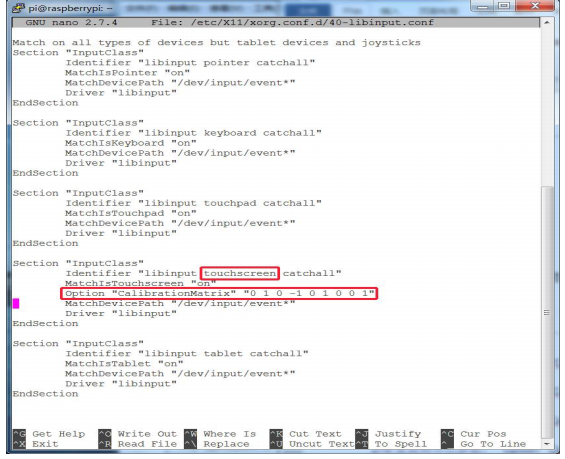
Find a part of the touchscreen, add the following statement inside; press Ctrl+X to exit, press Y to save. 7inch HD Display-C user manual.
| Option "CalibrationMatrix" "0 1 0 -1 0 1 0 0 1" |
5. Restart your Raspberry Pi
| sudo reboot |
Complete the above steps for a 90 degree rotation.
Note:
0 degrees of rotation parameters: Option "CalibrationMatrix" "1 0 0 0 1 0 0 0 1"
90 degrees of rotation parameters: Option "CalibrationMatrix" "0 1 0 0 -1 1 0 0 1"
180 degrees of rotation parameters: Option "CalibrationMatrix" "-1 0 1 0 -1 1 0 0 1"
270 degrees of rotation parameters: Option "CalibrationMatrix" "0 -1 1 1 0 0 0 0"
| How to use as PC monitor |
- Connect the computer HD output signal to the LCD HD interface by using the HD cable.
- Connect the LCD's USB Touch interface (Either of the two MicroUSB) to the USB port of the device.
- If there are several monitors, please unplug other monitor connectors first, and use LCD as the only monitor for testing.
Don't delay. Buy today.
Add to cart now!
Reviews
Customers who bought this product also bought:
-
Raspberry Pi...
Genuine Product Black and Grey case for...
$7.20
-
5x5x20 mm...
5x5x20 mm Semi Transparent White Plastic Pillar...
$0.10
-
NEO-7M GPS...
NEO7M APM2.5 GYGPSV1 NEO-7M GPS module See...
$14.40
-
M2 White...
M2 White Plastic Hexagonal Pilar (7 mm)
$0.12
-
PN532 NFC...
PN532 NFC module, as its name implies, is based...
$12.00
-
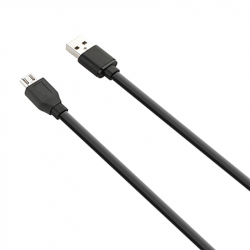
Micro USB...
Micro USB Black Cable 1 m
$0.96
-
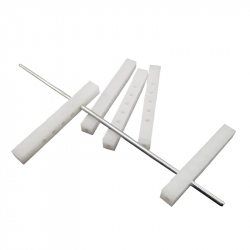
5x5x42 mm...
5x5x42 mm Plastic Spacers See description for...
$0.35
-
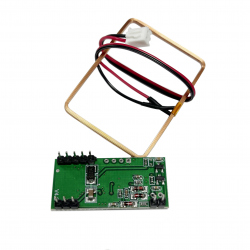
RDM6300 RFID...
This is a 125 KHz RDM6300 RFID Card Reader that...
$4.80
-
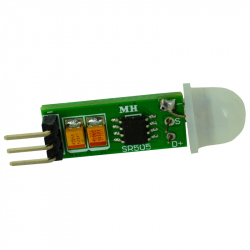
HC-SR505...
HC-SR505 is a passive infrared motion sensor....
$1.74
-
MQ-2 Gas...
This MQ-2 gas sensor module is used for gas...
$2.64